Using the AI chat
Ask questions in plain language. The chat reasons, cites its sources, and can act on your canvas.
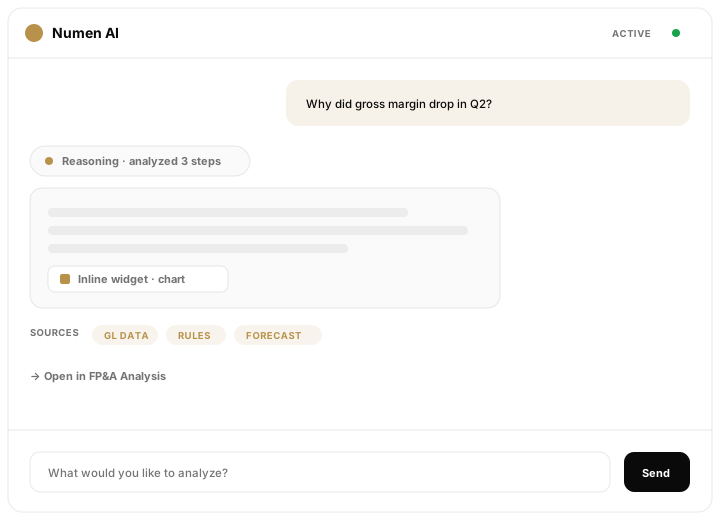
The AI chat is a conversational assistant that sits at the center of every agent page, between the agent sidebar and the canvas. It is shared across all agents, so it always has your current context. You ask in plain language — the input reads "What would you like to analyze?" — and it answers with numbers, charts, and next steps.
Asking good questions
You do not need a special syntax — write the way you would ask a colleague. The more specific you are about the metric, period, and entity, the sharper the answer. If you leave something out, the chat uses the canvas context filters as a default.
| Goal | Try asking |
|---|---|
| Explain a variance | "Why did marketing spend jump in Q2 versus budget?" |
| Find anomalies | "Scan last month for unusual transactions." |
| Build a report | "Draft a P&L summary for the Korea entity, this quarter." |
| Run a scenario | "What if raw material cost rises 8%? Compare to base." |
Reasoning trace and sources
As it works, the chat streams a reasoning trace — the thinking steps it takes on the way to an answer. It is collapsed by default; expand it when you want to check how a conclusion was reached.
Crucially, the chat cites its data sources — which tables, APIs, rules, or ERP data it used. In management accounting, knowing where a number came from is as important as the number itself, so every answer is traceable back to its inputs.
Inline widgets and canvas actions
Answers are not just text. The chat renders markdown and inline widgets — charts and tables shown right inside the reply. When one is useful beyond the conversation, you can insert the widget into the canvas right away, or save it straight to your Library and pull it onto any canvas later.
The chat can also trigger an agent action — for example, running an anomaly scan — and offer related links to jump to a report or another agent, so you are never stuck copying context by hand.
Asking about your files
To analyze something that is not yet in Numen, press + in the chat input and choose Open File Manager — pick any file you've stored there (meeting notes, CRM exports, FX data) and ask about it directly. You can also attach a fresh Excel or CSV on the spot. Either way, the chat reads the file and works from that data alongside your existing sources. See File Manager.